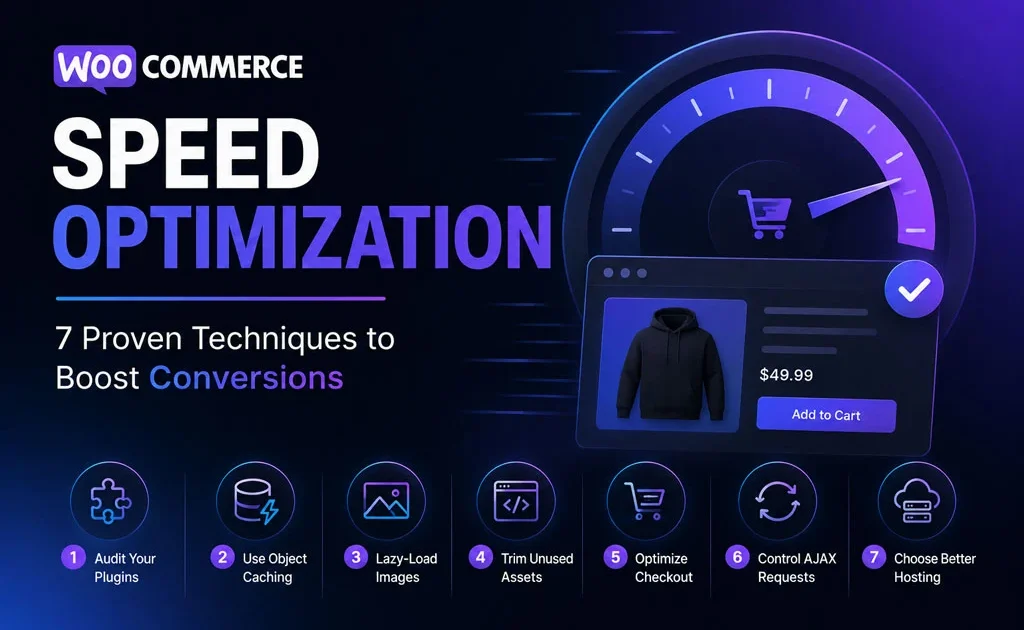
Every extra second of load time on a WooCommerce store is a small tax on your conversion rate. Shoppers are far less patient on a product page than they are browsing a blog, and cart abandonment climbs sharply once load times cross the two-to-three second mark. The good news: most WooCommerce slowdowns come from a small, predictable set of causes.
1. Audit your plugin stack first
WooCommerce stores tend to accumulate plugins — a shipping calculator here, a reviews widget there, an “upsell” plugin someone installed once and forgot about. Each one adds its own database queries and asset loads on every single page, whether it’s needed there or not. Before touching caching or image compression, remove anything that isn’t actively earning its keep.
2. Use object caching for product queries
WooCommerce leans heavily on custom database queries for products, variations, and cart calculations. Persistent object caching (Redis or Memcached, if your host supports it) means those queries don’t have to hit the database fresh on every page load — this alone is often the single biggest speed win available on a busy store.
3. Lazy-load product images — correctly
Product archive pages can easily have 20+ images above and below the fold. Lazy-loading everything except the very first row of visible products keeps initial load fast without sacrificing the browsing experience further down the page.
4. Trim what loads on non-shop pages
- WooCommerce’s own CSS/JS often loads sitewide by default, even on pages with no cart or product content.
- Conditionally dequeuing WooCommerce assets on non-shop pages (blog posts, the homepage, a contact page) can meaningfully cut unnecessary weight.
5. Optimize the checkout page specifically
Checkout is the one page where speed translates most directly into revenue. Keep third-party scripts (chat widgets, marketing pixels, non-essential trackers) off the checkout flow entirely where possible — every extra script is one more thing that can delay the “Place Order” button becoming interactive.
The checkout page is the worst place on your entire site for a slow-loading tracking script to live.
6. Get variation and cart-fragment AJAX under control
WooCommerce refreshes “cart fragments” via AJAX on every page to keep the mini-cart icon updated — useful, but it can add real overhead on stores with heavy caching setups or slow hosting. On many builds, disabling fragment refresh (or limiting it to only the pages that actually show a mini-cart) removes a surprising number of unnecessary requests.
7. Choose hosting built for WooCommerce specifically
General-purpose shared hosting struggles with WooCommerce’s database load once a store has any real traffic or catalog size. Managed WooCommerce hosting (with server-level caching aware of cart/checkout pages, so it doesn’t accidentally cache a customer’s cart) consistently outperforms generic WordPress hosting for stores past the hobby stage.
The order that actually matters
Start with the plugin audit and hosting — they’re the two changes with the highest ceiling. Then move through caching, image handling, and checkout-page cleanup. Speed work on WooCommerce is rarely one silver bullet; it’s five or six smaller fixes that compound, and the compounding is exactly what turns into a measurable lift in completed checkouts.